

How the tattoo simulator works
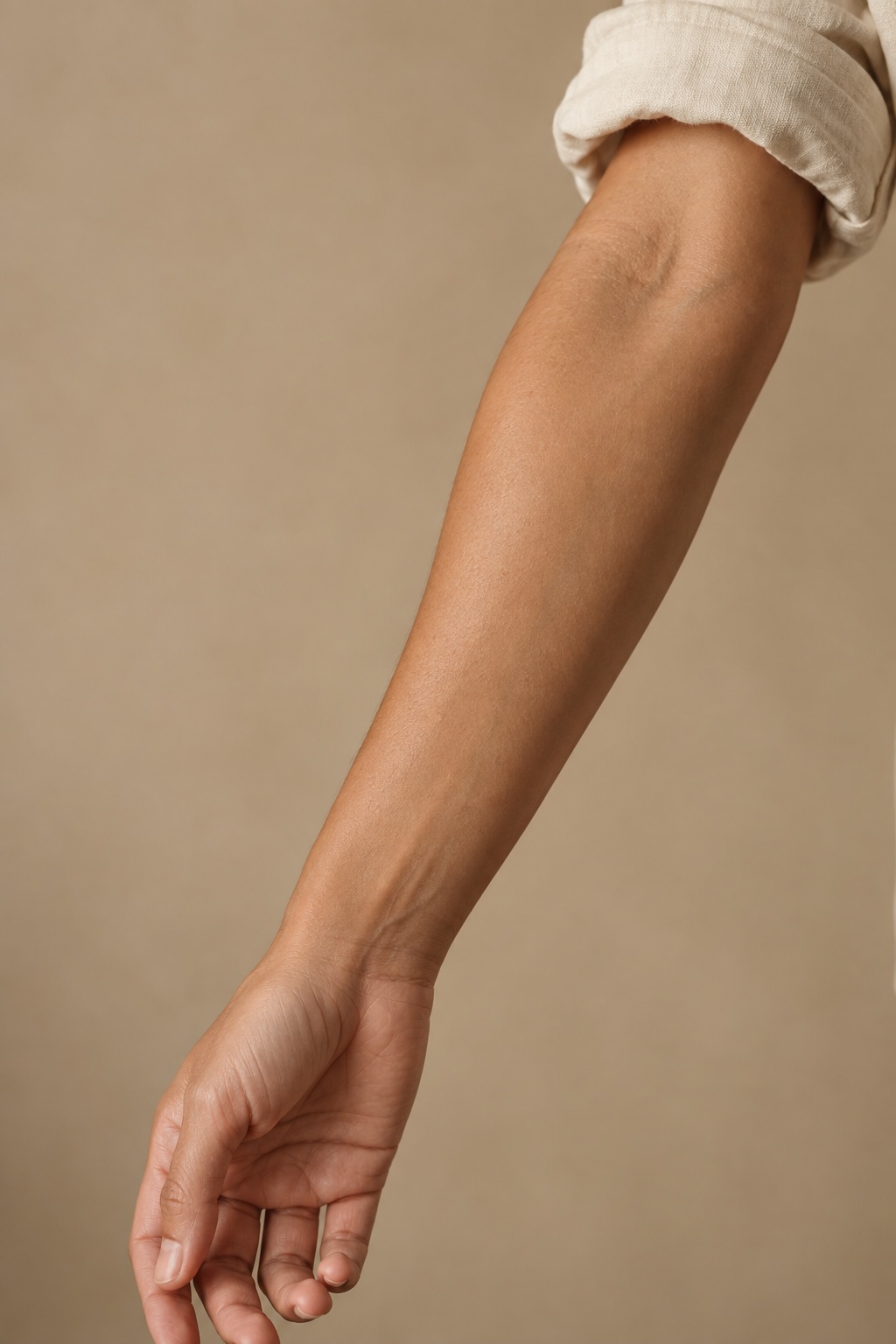
TatTryOn lets you compare a tattoo design with a photograph before you make a permanent decision. Start with the built-in forearm example, or bring a photo of yourself and artwork you want to explore. The free Classic editor lets you move, resize, rotate, and preview the design without signing up. Open the tattoo try on studio when you want a full workspace, or try the embedded editor above.
Upload a photo
Choose Body in the editor and upload a clear photo of an adult, with the intended tattoo area visible. PNG, JPEG, and WebP files up to 15 MB are supported. Export HEIC photos as JPEG first. A well-lit photo taken straight toward the area makes placement easier to judge. Avoid a tight crop: nearby body landmarks help you compare proportion. Your current photo and design are processed in this browser, and you can remove the local draft from the Adjust panel.
Pick a design and a placement
Pick one of the eight original designs or upload your own artwork from the Tattoo panel. A transparent background lets the photo show around the artwork; the editor also offers simple white-background removal for uploaded designs. Choose where the design should sit by dragging it on the photo. The placement links below lead to a placement page or the studio. They do not switch the body photo automatically: the included model is a forearm, so upload your own photo to explore another area.
Adjust the size and preview
Use the Adjust panel to change size, rotation, opacity, and position. Flip the design if you want to compare its direction, and reset the placement when you want to start again. Select Preview Result to compare the composition with the original photo, then download a copy before trying another arrangement. Save a few clearly different options rather than many nearly identical ones. The preview is a visual reference; it does not supply a physical tattoo measurement or a finished stencil.
Try a tattoo on by placement
Choose an area you are considering and use your own photo in the studio to compare the placement. These examples are starting points for experimentation, not rules about where a design belongs. The same artwork can be tried in several areas without changing its original file.
Forearm
Start with Wildflower on the included forearm model, then upload your own forearm photo to make the comparison personal. Try the stem along the length of your arm, rotate it slightly, and compare a smaller version with one that fills more of the visible area. Leave space around the design so you can judge its relationship to your wrist and elbow. The model is an example, not a match for your proportions.
Wrist
Open Olive branch as a starting design and upload a photo showing your wrist in a relaxed position. Compare the branch running along your arm with a shorter, angled arrangement. Keep the edge of your hand in the frame as a visual reference. If details become hard to read when you reduce the image, save a larger alternative too, then ask your artist about a practical final size.
Hand
Try Solstice with your own hand photo to explore a compact circular design. Photograph your hand in the position you want to compare, keeping the fingers and knuckles visible. Move the design between a central position and one closer to an edge, checking how much space remains around it. A single photo only shows one pose; make a separate preview if you want to compare your hand in another position.
Ankle
Still moving gives you a simple wave to compare near your ankle. Upload a photo that shows the ankle and some of the lower leg, then try a short horizontal placement and a slightly rotated version. Include footwear in a separate photo if visibility with shoes matters to you. The editor does not automatically wrap the design around your ankle, so keep the preview on the area facing the camera.
Leg
Use Serpent to explore a longer design on your own leg photo. Start with the whole intended area visible, rather than a close crop that hides nearby landmarks. Compare a narrow version with a larger one and look at both from a normal viewing distance. You can rotate and move the artwork, but its shape stays flat; a tattoo artist can help adapt the composition to the actual curve of your leg.
Shoulder
Quiet wings is a starting point for a balanced design on the shoulder. Upload a photo with the shoulder clearly visible and compare the wings at a few angles. Notice whether the artwork feels centered in the photograph or centered on the body area you actually intend. Those can be different. Use another photograph to explore another viewpoint, because this preview does not turn a single image into a three dimensional model.
Back
Try Far from here on your own back photo to compare a horizontal composition. Keep the camera level and include enough of your back to judge the distance from the shoulders and spine. Move the mountains between a centered position and an offset one, then download the version you prefer. A wide design may look different as your posture changes, so use the saved image to explain your intention rather than to specify exact measurements.
Chest
In orbit offers a geometric starting point for a chest placement. Use a clear, non-explicit adult photo with the intended area visible, and compare the design at several sizes before choosing one. Pay attention to how the circles sit relative to the collarbone and the center of the chest. The preview follows the photograph, not an anatomical surface, so an artist should confirm the final alignment directly on your body.
Browse tattoo designs by style
Visit the tattoo designs library to see all eight current designs and search by name or style. Choose an artwork because its shape and meaning appeal to you, then use the simulator to compare scale and placement. You can also bring an existing design into the editor instead of selecting a preset.
Fine line
Explore Wildflower, Quiet wings, and Olive branch in the collection. These designs use open space and lighter lines, making it useful to compare both the overall silhouette and the small details. Try a larger placement first, then reduce it gradually. The preview helps you decide which composition you like; it does not establish the smallest size an artist can reliably tattoo.
Minimalist
Solstice and Still moving offer simple shapes for comparing position without a busy composition. A small change in angle or spacing can noticeably change how a minimal design sits in a photo. Try the same artwork in two positions and download each version. Comparing them side by side can make your preference easier to explain than describing an imagined location.
Blackwork
Start with Serpent to explore a darker design and its relationship to the surrounding skin in your photograph. Adjust opacity to compare the appearance of the overlay, but remember that this control changes the digital image rather than predicting real ink density. Check the preview at a comfortable viewing size as well as close up, and bring both the original design and your placement reference to your artist.
Geometric
Far from here and In orbit give you different geometric compositions to explore. Use the rotation control to compare a level alignment with one that follows a visible line of your body. Circles and straight lines can make perspective differences especially noticeable. The editor keeps the artwork flat, so use the result to compare composition and let your artist work out any adjustments needed for a curved surface.
Traditional
Browse the current collection for placement ideas, or upload a traditional design you have permission to use. The eight built-in designs do not currently include a traditional preset. If you bring your own artwork, compare its outer shape at several sizes before focusing on smaller details. A clean image with a transparent background is a useful starting point for seeing how the design sits on your photo.
Why use a simulator before you get inked
A design on a blank page can feel different when you see it next to your wrist, shoulder, or clothing. A simulator gives you a concrete way to compare those relationships. You can explore whether you prefer a quieter placement, a larger focal point, or the same design turned in another direction. There is no need to settle the whole decision in one session: download your favorites and look again later.
A saved preview also gives your tattoo artist something specific to discuss. Bring the original artwork along with the image showing your preferred placement. Explain what you like about the position and which details matter to you. Your artist can assess the design, suggest a suitable size, and check the placement directly on your body. The simulator supports that conversation; it does not replace it or guarantee how healed ink will look.
Current feature status: Classic photo placement, comparison, and preview downloads are available. AI tattoo generation and AI rendering are not enabled. The preview uses a flat image overlay with optional blending, so it cannot model skin curvature, movement, or healed texture. Uploaded images stay in this browser for the current Classic workflow. Local drafts are not cloud backups; download anything you want to keep and clear your draft when using a shared device.
FAQ
how do I see what a tattoo looks like on me
Open the tattoo simulator, choose Body, and upload a clear photo of the area you want to try. Select a design, drag it into position, and adjust its size, rotation, and opacity. Use Preview Result to compare the placement with your original photo, then download a reference to discuss with your tattoo artist.
can I try on a tattoo with my own photo
Yes. Upload an adult body photo in PNG, JPEG, or WebP format, up to 15 MB. You can also upload your own tattoo design. The current Classic editor processes these images in your browser and keeps a local draft on this device. No account is needed to place, preview, or download your design.
is a tattoo simulator accurate
A simulator helps you compare the visible size, angle, and placement of a design in one photograph. It cannot predict healed ink, skin texture, movement, or how a tattoo wraps around your body. TatTryOn currently offers a flat Classic preview with adjustable blending; AI rendering is not enabled. Treat the result as a discussion reference, not a guaranteed outcome.
does it work without downloading an app
Yes. TatTryOn runs in your web browser, so you can start with the included forearm photo or upload your own without installing an app. Use the full studio for more room to adjust your design. Download any preview you want to keep; local drafts do not automatically transfer between browsers or devices.